> ## Documentation Index
> Fetch the complete documentation index at: https://wb-21fd5541-feature-automate-reference-docs-generation.mintlify.site/llms.txt
> Use this file to discover all available pages before exploring further.
# Logging media
> Log and display video, images, and audio with Weave
Weave supports logging and displaying video, images, and audio.
## Video
Weave automatically logs videos using [`moviepy`](https://zulko.github.io/moviepy/). This allows you to pass video inputs and outputs to traced functions, and Weave will automatically handle uploading and storing video data.
Video support is currently only available in Python.
For usage information, see [Video Support](../tracking/video).
## Images
Logging type: `PIL.Image.Image`.
Base64-encoded image strings (e.g., `data:image/jpeg;base64,...`) are technically supported but discouraged. They can cause performance issues and should only be used if absolutely necessary (e.g., for integration with specific APIs).
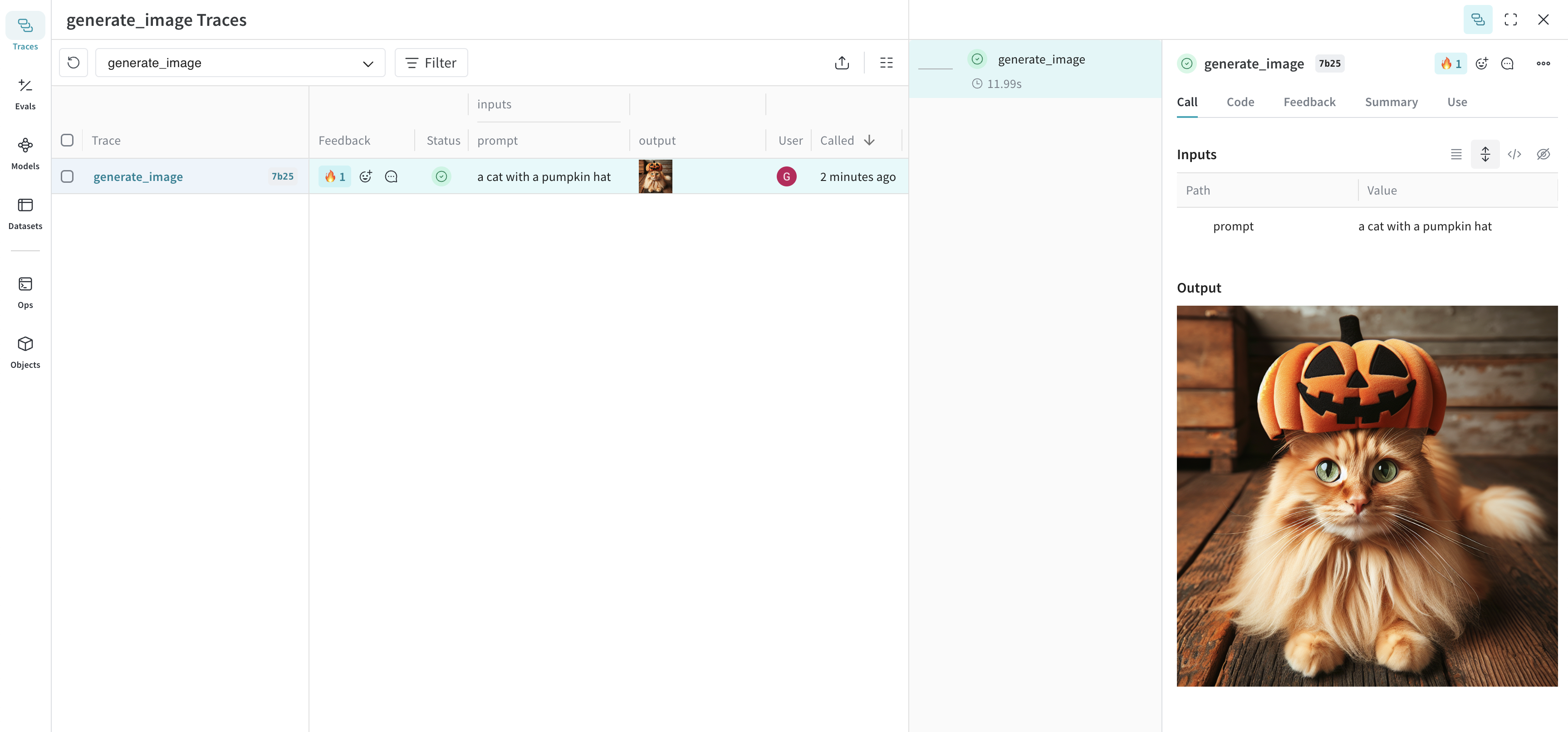
The following example shows how to log an image generated via the OpenAI DALL-E API:
```python
import weave
from openai import OpenAI
import requests
from PIL import Image
weave.init('image-example')
client = OpenAI()
@weave.op
def generate_image(prompt: str) -> Image:
response = client.images.generate(
model="dall-e-3",
prompt=prompt,
size="1024x1024",
quality="standard",
n=1,
)
image_url = response.data[0].url
image_response = requests.get(image_url, stream=True)
image = Image.open(image_response.raw)
# return a PIL.Image.Image object to be logged as an image
return image
generate_image("a cat with a pumpkin hat")
```
```typescript
import {OpenAI} from 'openai';
import * as weave from 'weave';
async function main() {
const client = await weave.init('image-example');
const openai = new OpenAI();
const generateImage = weave.op(async (prompt: string) => {
const response = await openai.images.generate({
model: 'dall-e-3',
prompt: prompt,
size: '1024x1024',
quality: 'standard',
n: 1,
});
const imageUrl = response.data[0].url;
const imgResponse = await fetch(imageUrl);
const data = Buffer.from(await imgResponse.arrayBuffer());
return weave.weaveImage({data});
});
generateImage('a cat with a pumpkin hat');
}
main();
```
This image is logged to Weave and automatically displayed in the UI.
### Resize large images before logging
It can be helpful to resize images before logging to reduce UI rendering cost and storage impact. You can use `postprocess_output` in your `@weave.op` to resize an image.
```python
from dataclasses import dataclass
from typing import Any
from PIL import Image
import weave
weave.init('image-resize-example')
# Custom output type
@dataclass
class ImageResult:
label: str
image: Image.Image
# Resize helper
def resize_image(image: Image.Image, max_size=(512, 512)) -> Image.Image:
image = image.copy()
image.thumbnail(max_size, Image.ANTIALIAS)
return image
# Postprocess output to resize image before logging
def postprocess_output(output: ImageResult) -> ImageResult:
resized = resize_image(output.image)
return ImageResult(label=output.label, image=resized)
@weave.op(postprocess_output=postprocess_output)
def generate_large_image() -> ImageResult:
# Create an example image to process (e.g., 2000x2000 red square)
img = Image.new("RGB", (2000, 2000), color="red")
return ImageResult(label="big red square", image=img)
generate_large_image()
```
## Audio
Logging type: `wave.Wave_read`.
The following example shows how to log an audio file using OpenAI's speech generation API.
```python
import weave
from openai import OpenAI
import wave
weave.init("audio-example")
client = OpenAI()
@weave.op
def make_audio_file_streaming(text: str) -> wave.Wave_read:
with client.audio.speech.with_streaming_response.create(
model="tts-1",
voice="alloy",
input=text,
response_format="wav",
) as res:
res.stream_to_file("output.wav")
# return a wave.Wave_read object to be logged as audio
return wave.open("output.wav")
make_audio_file_streaming("Hello, how are you?")
```
```typescript
import {OpenAI} from 'openai';
import * as weave from 'weave';
async function main() {
await weave.init('audio-example');
const openai = new OpenAI();
const makeAudioFileStreaming = weave.op(async function audio(text: string) {
const response = await openai.audio.speech.create({
model: 'tts-1',
voice: 'alloy',
input: text,
response_format: 'wav',
});
const chunks: Uint8Array[] = [];
for await (const chunk of response.body) {
chunks.push(chunk);
}
return weave.weaveAudio({data: Buffer.concat(chunks)});
});
await makeAudioFileStreaming('Hello, how are you?');
}
main();
```
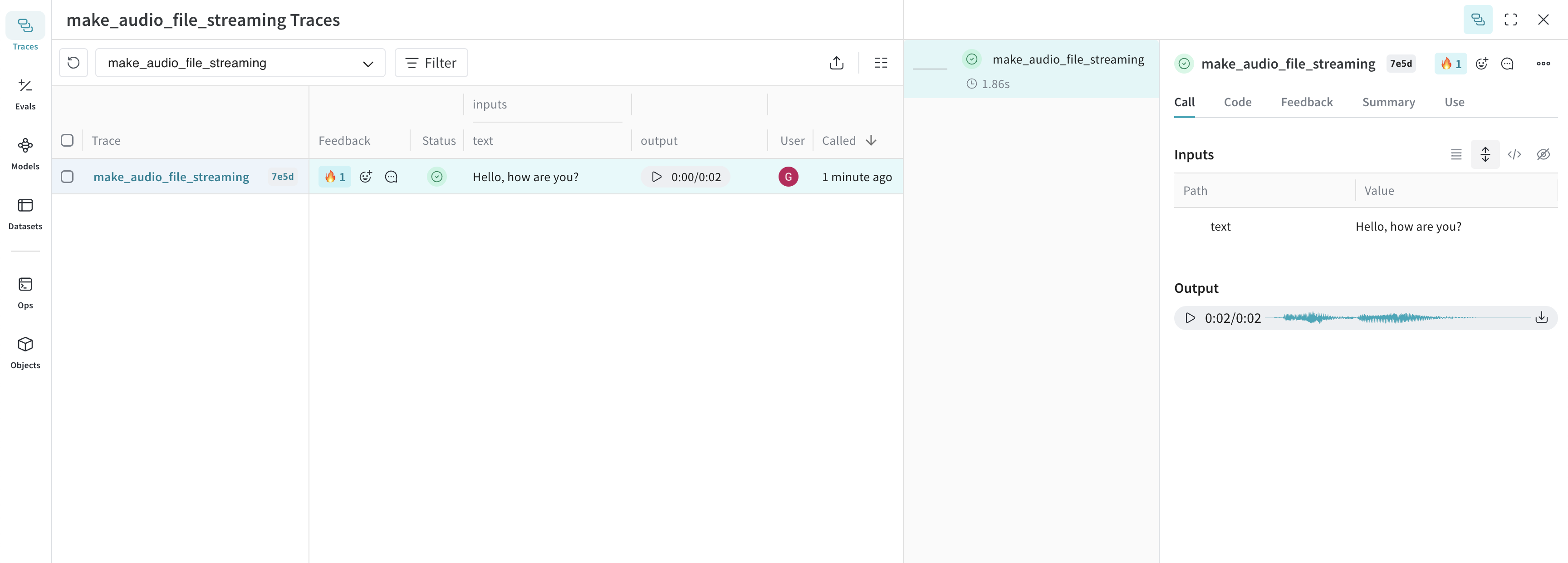
This audio is logged to Weave and automatically displayed in the UI, along with an audio player. In the audio player, you can view and download the raw audio waveform.
Try our cookbook for [Audio Logging](/cookbooks/audio_with_weave) or 
Open in Colab